


If you’ve ever used Contact Form 7, you already know how simple it is to create forms and start collecting messages on your website. But there’s one catch. By default, Contact Form 7 doesn’t store submissions in your WordPress database. That means every message only lives in your email inbox. If an email gets lost, deleted, or marked as spam, that data is gone. No backup. No record inside WordPress.
For small sites, this might not seem like a big deal. But as your website grows and submissions increase, relying only on email becomes risky. So the question becomes: How do you actually save Contact Form 7 entries inside WordPress?
Let’s walk through a better, more reliable way to do it.
Why Saving Form Entries Matters
When form submissions are stored in your database, everything changes. You’re no longer dependent on emails. Instead, you get:
- A secure backup of all submissions
- Easy access to past entries
- Better organization of leads and inquiries
- The ability to search, filter, and manage data
- Options to export and analyze submissions
In short, your forms stop being just a communication tool, and start becoming a data asset.
The Limitation of Default Contact Form 7
Out of the box, Contact Form 7 is designed to send emails, not store entries. So if you want to:
- Revisit old submissions
- Share data with your team
- Track inquiries over time
You’ll quickly realize something is missing.
That’s where a plugin like WPSyncSheets comes in.
How WPSyncSheets Help?
With WPSyncSheets For Contact Form 7, you can automatically save every Contact Form 7 submission directly into your WordPress database. No manual setup. No copying data. No relying only on emails. Once connected, every time a user fills out a form:
- The data is stored safely in your database
- Entries are organized and accessible
- You can manage everything from a central dashboard
It’s a simple change, but it makes your workflow much more reliable.
How to Save Contact Form 7 Entries to WordPress Database?
Let’s go through the actual process.
Step 1: Install and Activate WPSyncSheets
Start by installing the WPSyncSheets For Contact Form 7 plugin on your WordPress site. Once activated, you’ll be able to connect your forms and start storing entries automatically.
Step 2: Enable “Save to DB” Feature
From your WordPress dashboard, navigate to: WPSyncSheets Lite > For Contact Form 7 > Save to DB.
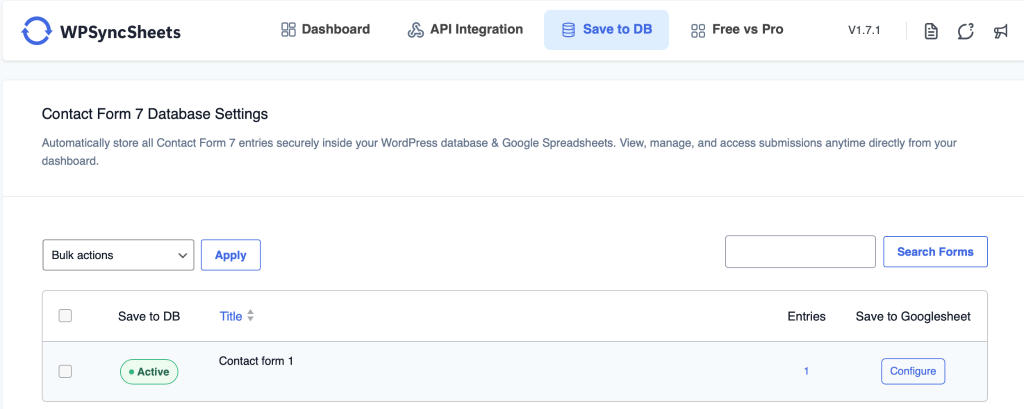
This is where the entry-saving functionality lives. Here, you’ll see all your Contact Form 7 forms listed.
Step 3: Verify Your Forms Are Synced
Inside the Save to DB section:
- Confirm that your forms are visible
- Ensure syncing is active
Once this is set, your forms are ready to start saving entries automatically.
Step 4: Start Capturing Entries
Now, whenever someone submits a form on your website:
- The entry is saved in your WordPress database
- You don’t have to do anything manually
- No submission is lost, even if emails fail
Everything happens quietly in the background.
Step 5: View and Manage Saved Entries
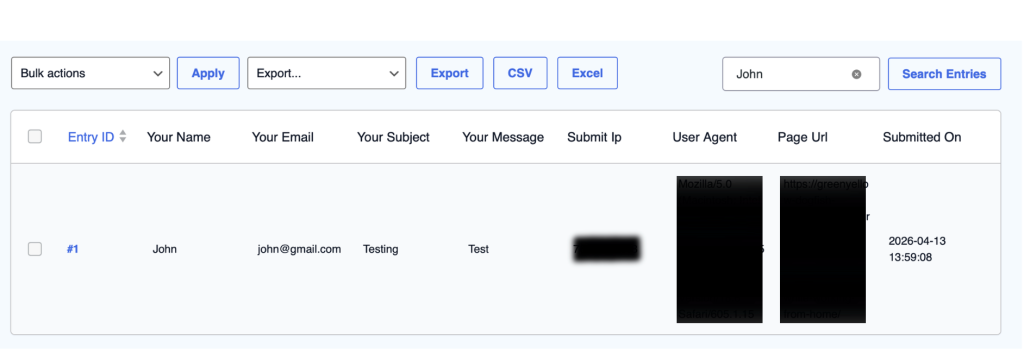
Click on any form inside the Save to DB section. From here, you can:
- View all submitted entries
- Access complete form data
- Keep everything organized in one place
No more digging through emails.
Step 6: Search, Delete, or Export Entries
Once your entries are stored, you can manage them easily:
- Search for specific submissions
- Delete individual or bulk entries
- Export data in CSV or Excel format
This makes it easier to clean, analyze, or share your data when needed.
Why This Approach Works Better
Once you start saving entries in your database, you’ll notice the difference immediately. You’re no longer:
- Worried about missing emails
- Searching through inboxes
- Manually tracking submissions
Instead, you have a structured system where:
- All data is stored safely
- Everything is easy to access
- Managing entries becomes quick and simple
It’s a small setup that removes a lot of friction.
When You Should Definitely Use This
Saving Contact Form 7 entries becomes essential if:
- You receive frequent form submissions
- You rely on forms for leads or inquiries
- You need a record of all communications
- Multiple team members need access to data
If your business depends on form data, this isn’t optional — it’s necessary.
Final Thoughts
Contact Form 7 is great for collecting messages, but relying only on email isn’t enough for long-term data management. By saving your entries directly into the WordPress database using WPSyncSheets, you create a system that’s:
- Reliable
- Organized
- Easy to manage
And once your data is under control, everything else, including follow-ups, reporting, decision-making, becomes much easier.
FAQs
post-12045
No. It only sends submissions via email. Entries are not saved in the database unless you use a plugin.