


If you’re already using Contact Form 7 and saving submissions in your WordPress database, you’ve taken a big step toward better data management. But storing entries is only part of the process. At some point, you’ll want to export Contact Form 7 entries for reporting, sharing, or analysis.
Whether you need data in Google Sheets for collaboration, CSV for flexibility, or Excel for detailed reporting, having export options makes your workflow much more efficient. Let’s walk through how to do it the right way using WPSyncSheets.
Why Exporting Form Entries Matters?
Once your form submissions are saved in the database, exporting them gives you more control over how you use that data.
Here’s why exporting is useful:
- Share entries with your team
- Create reports and dashboards
- Analyze leads and customer behavior
- Keep offline backups
- Import data into other tools or systems
In short, exporting turns your stored data into something actionable.
What You Need Before Exporting?
Before you export entries, make sure:
- You are using Contact Form 7 on your site.
- Entries are being stored using WPSyncSheets For Contact Form 7.
- The Save to DB feature is enabled.
Once this setup is complete, all your form submissions will be available inside your WordPress dashboard.
For more details, refer to the Setup guide and Google sheets API settings.
Where to Find Your Saved Entries?
To access your entries:
Go to WPSyncSheets Lite > For Contact Form 7 > Save to DB
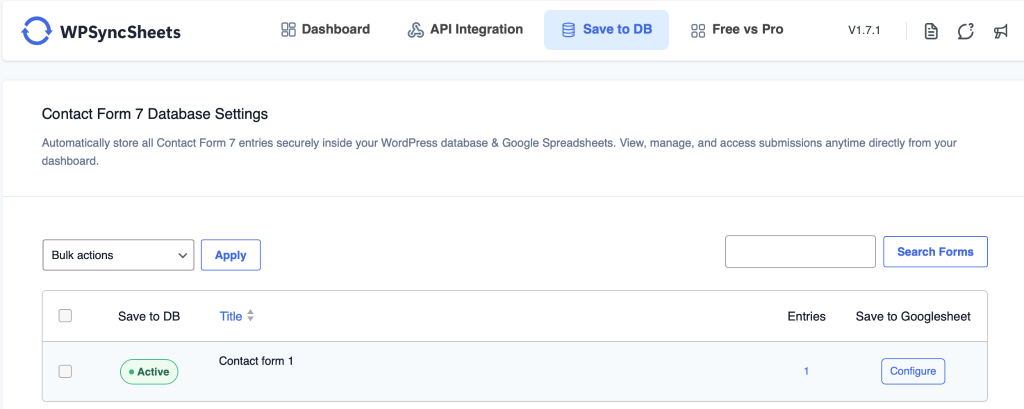
Here, you’ll see a list of all your forms. Click on any form to view its submissions. This is your central dashboard where you can:
- View all entries
- Filter submissions
- Select specific records
- Export data in different formats
How to Export Contact Form 7 Entries?
Step 1: Open the Save to DB Section
From your WordPress dashboard, navigate to the Save to DB tab and select the form whose entries you want to export.
Step 2: Apply Filters (Optional but Recommended)
Before exporting, you can filter your data to get exactly what you need. For example, you can filter by:
- Date range
- Specific field values
- Keywords or search terms
This helps you export only relevant entries instead of downloading everything.
Step 3: Select Entries
Once your data is filtered:
- Select individual entries manually
- Or use bulk selection to choose all filtered results
This gives you full control over what gets exported.
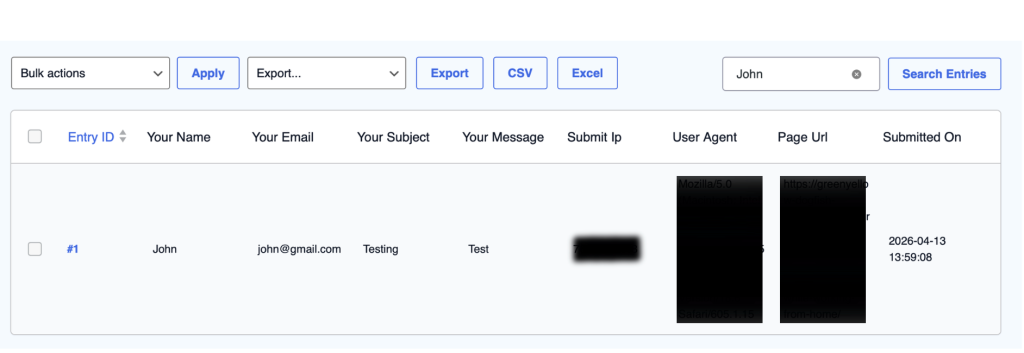
Step 4: Choose Export Format
Now comes the important part, choosing your format. You can export your Contact Form 7 entries in:
Google Sheets
- Instantly sync data to Google Sheets
- Perfect for real-time collaboration
- Ideal for teams and ongoing tracking
CSV (Comma-Separated Values)
- Lightweight and widely supported
- Easy to import into other tools
- Great for quick data transfers
Excel (XLSX)
- Best for detailed reporting
- Supports formatting, charts, and formulas
- Ideal for advanced data analysis
Step 5: Export Your Data
Click the export option based on your chosen format. Your file will be:
- Downloaded (CSV/Excel), or
- Synced directly (Google Sheets)
No manual copying. No complicated steps.
Using Google Sheets for Real-Time Sync
One of the biggest advantages of WPSyncSheets is the ability to connect your forms directly to Google Sheets. With this setup:
- New submissions are automatically added to your sheet
- No need to export repeatedly
- Your data stays updated in real time
This is especially useful for teams handling leads, support requests, or inquiries.
Best Practices for Exporting Data
To get the most out of your exports:
- Always apply filters to avoid unnecessary data.
- Export data regularly for backups.
- Use Google Sheets for ongoing tracking.
- Use Excel for reporting and presentations.
- Clean your data before sharing externally.
When You Should Export Entries?
Exporting becomes essential when:
- You need to share submissions with clients or team members
- You’re preparing reports or analytics
- You want to migrate data to another system
- You need an external backup
Final Thoughts
Saving entries in your WordPress database is the foundation. But being able to export Contact Form 7 entries to Google Sheets, CSV, and Excel is what makes your data truly useful.
With WPSyncSheets and its Save to DB tab, combined with filtering and selection options, you get complete control over your form data. No more digging through emails. No more manual work. Just clean, organized, and export-ready data whenever you need it.
FAQs
post-12071
Yes, you can filter and select specific entries before exporting.