

Managing form submissions efficiently is essential for any WordPress website that depends on leads, inquiries, or customer interactions. While Contact Form 7 is widely used for building forms, its default dashboard is not ideal for scaling workflows, collaboration, or reporting.
That’s where WPSyncSheets For Contact Form 7 comes in. It automatically syncs form submissions to Google Sheets, helping teams turn raw entries into structured, usable data in real time. Below are the 5 most powerful use cases, explained in detail with practical workflows.
1. Centralized Lead Management System
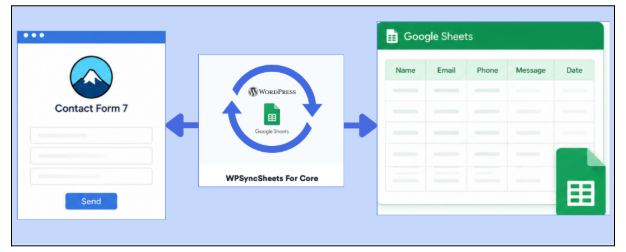
For businesses running multiple campaigns or landing pages, leads often get scattered inside WordPress. With WPSyncSheets For Contact Form 7, every submission is instantly pushed into a structured Google Sheet. This is how it works in practice:
- Each Contact Form 7 submission becomes a new row in Google Sheets.
- Fields like name, email, phone, service type, and message are mapped into columns.
- You can add extra columns like “Lead Status” or “Assigned To” manually in Sheets.
Real-world benefit:
Marketing and sales teams no longer need to log into WordPress. Instead, they work directly from Google Sheets where they can:
- Filter leads by campaign or source
- Assign follow-ups to team members
- Track lead status in real time
This effectively turns Google Sheets into a lightweight CRM without extra cost.
2. Automated Customer Inquiry Tracking System
Support requests can quickly become overwhelming if they are only stored inside WordPress. With WPSyncSheets For Contact Form 7, every inquiry is logged into Google Sheets in real time. This is how WPSyncSheets helps in this use case:
- Each inquiry is categorized in Sheets using form fields (e.g., “Support Type”).
- Timestamped entries help track urgency.
- Conditional formatting can highlight unanswered or high-priority tickets.
Real-world benefit:
Support teams can:
- Sort inquiries by category (billing, technical, general)
- Assign responsibility to team members
- Track resolution time
- Maintain a searchable support history
This improves response time and reduces missed customer messages.
3. Sales Pipeline & Opportunity Tracking
Many websites use Contact Form 7 for quote requests, demo bookings, or consultation forms. With WPSyncSheets For Contact Form 7, these submissions can be transformed into a simple sales pipeline. Because with WPSyncSheets, the following things happen:
- Each form submission becomes a “lead record” in Google Sheets.
- Additional columns like “Stage” (New, Contacted, Negotiation, Won) can be added.
- Sales reps update status directly in Sheets.
Real-world benefit:
Instead of investing in a full CRM, businesses can:
- Track deal progress visually
- Identify high-value leads
- Monitor conversion rates
- Prioritize follow-ups
For small businesses and agencies, this provides CRM-like functionality with zero complexity.
4. Marketing Campaign Performance Analysis
When Contact Form 7 forms are used across landing pages, they become a valuable source of marketing data. And, WPSyncSheets multiplies that value. When synced using WPSyncSheets For Contact Form 7, here is how things work:
- Capture UTM parameters (source, medium, campaign) in hidden form fields.
- Automatically store the data in Google Sheets.
- Use Sheets formulas or pivot tables for performance analysis.
Real-world benefit:
Marketing teams can:
- Compare performance across campaigns
- Identify high-converting traffic sources
- Track cost-per-lead effectiveness
- Build real-time dashboards in Google Sheets
This turns form submissions into actionable marketing intelligence instead of static data.
5. Automated Backup of Form Submissions
Relying only on WordPress for storing submissions is risky due to database issues, migrations, or accidental deletions. WPSyncSheets For Contact Form 7 provides a continuous backup solution by:
- Automatically copying every submission to Google Sheets.
- Storing data externally in real time.
- Choosing Sheets act as a permanent record of all entries.
Real-world benefit:
Businesses gain:
- Secure off-site data storage
- Easy export for reporting or compliance
- Protection against WordPress database failures
- Long-term historical data retention
This ensures no submission is ever lost.
Why WPSyncSheets for Contact Form 7 Stands Out?
Unlike manual export methods or complex automation tools, this plugin provides real-time synchronization and direct Google Sheets mapping. This plugin is a no-code setup with lightweight performance providing scalability for multiple forms. Additionally, it simplifies what would otherwise require Zapier, scripts, or custom APIs.
Final Thoughts
When you integrate Contact Form 7 with WPSyncSheets For Contact Form 7, your forms go beyond simple data collection and become a real-time data pipeline. Every submission is automatically organized in Google Sheets, removing the need for manual exports or constant WordPress checks.
This setup also improves teamwork and visibility. Sales, marketing, and support teams can access the same live data and update lead status. They can also track the responses directly inside Sheets. This creates a smoother workflow where information is easier to share, manage, and act on without switching tools.
As your website grows, this integration keeps everything scalable and structured. Whether you’re handling a few inquiries or thousands of submissions, your data remains clean, searchable, and ready for reporting, helping you make faster and more informed decisions.
FAQs
1. Does WPSyncSheets for Contact Form 7 support real-time syncing?
Yes, submissions are synced automatically to Google Sheets as soon as the form is submitted.
2. Can I map specific form fields to specific columns?
Yes, you can customize field-to-column mapping inside the plugin settings.
3. Do I need coding knowledge to use this plugin?
No, the plugin is fully no-code and designed for easy setup.
4. Can I track multiple Contact Form 7 forms separately?
Yes, each form can be mapped to a different sheet or tab.
5. Is data stored only in WordPress?
No, data is also stored in Google Sheets, acting as an external backup.
6. Can I use this for reporting and dashboards?
Yes, Google Sheets can be used to build reports, charts, and dashboards using synced data.