Effortlessly Import and Export WordPress Content with Google Sheets. Automatically sync posts, pages, and custom post types between your WordPress site and Google Sheets. Simplify content management, streamline bulk updates, and gain actionable insights with automated imports and exports. WPSyncSheets For Core empowers you to optimize, organize, and scale your content workflow with ease.
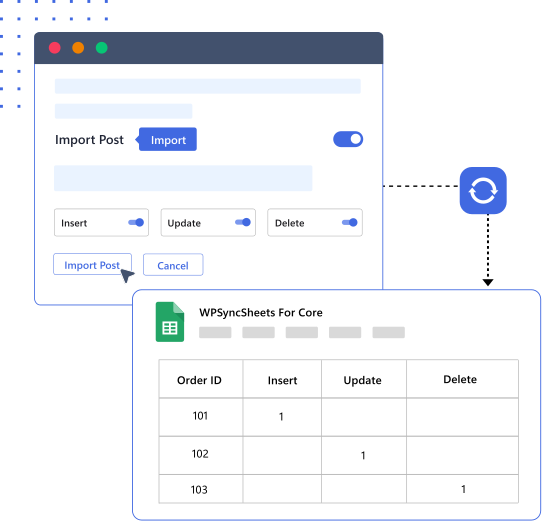
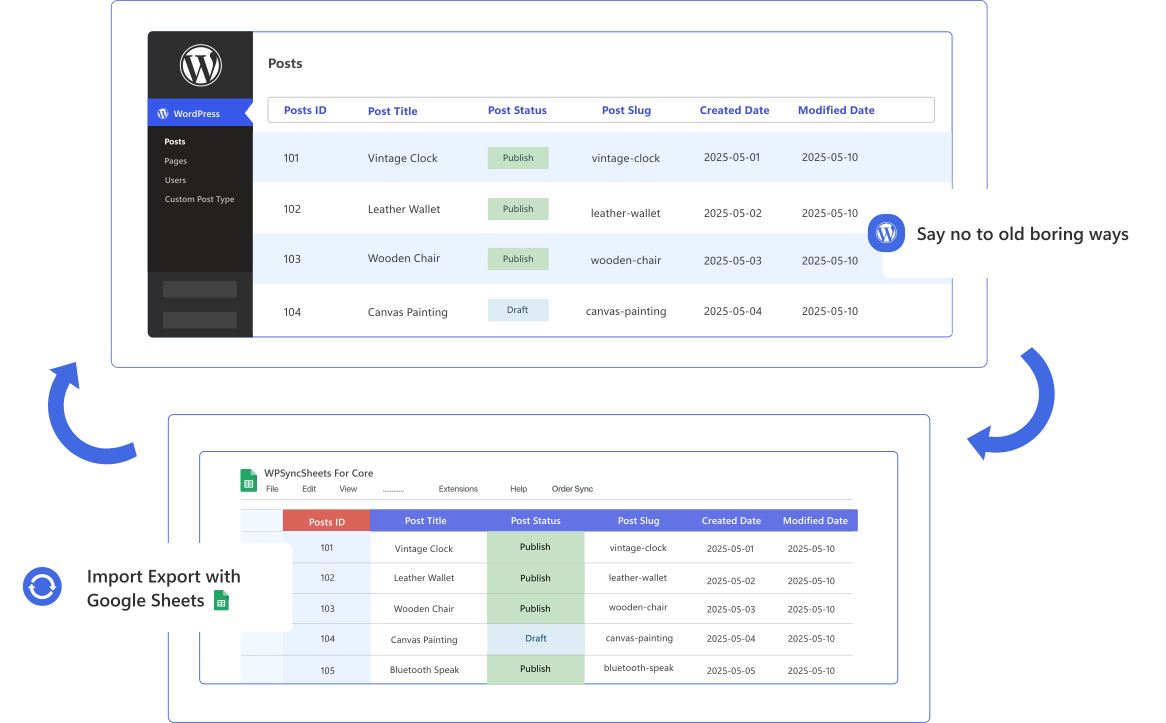
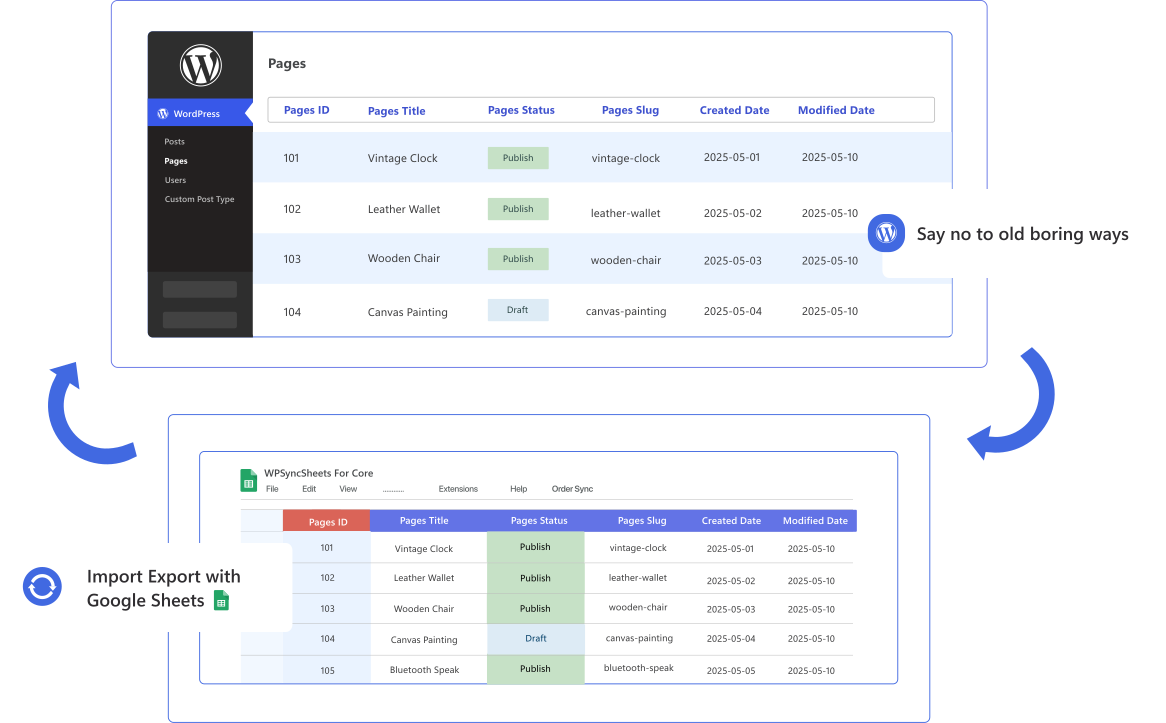
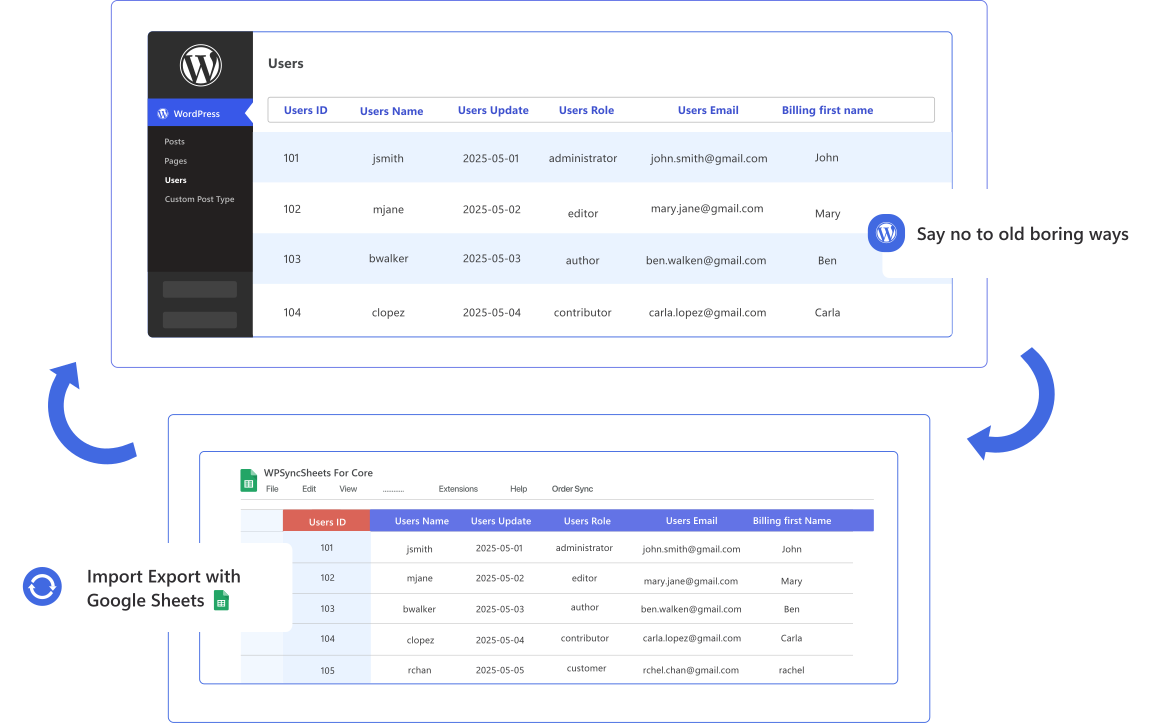
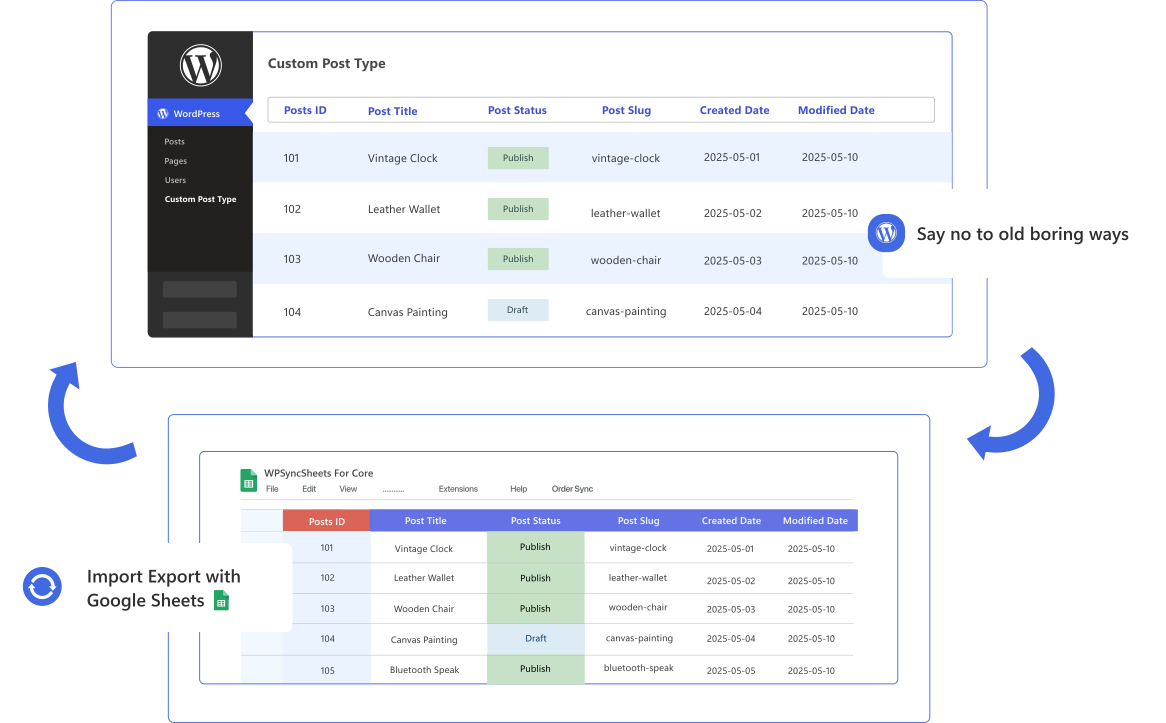
Seamlessly import posts, pages, and custom post types from Google Sheets to WordPress, boosting efficiency and organize your workflow.
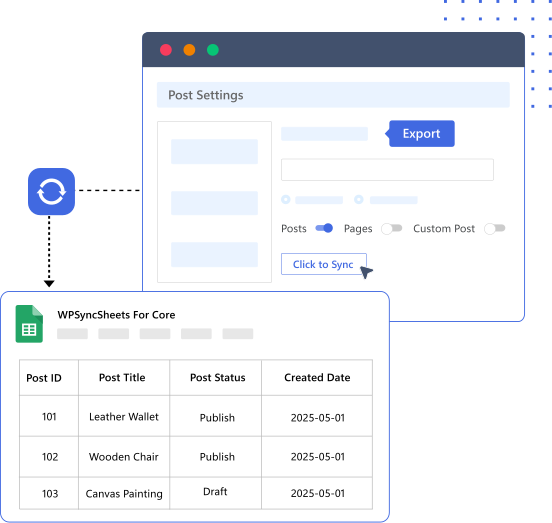
Automatically export and organize WordPress posts, pages, and custom post types in Google Sheets for seamless content management.
Integrate Google Sheets & WordPress with just a click – No coding skills required!

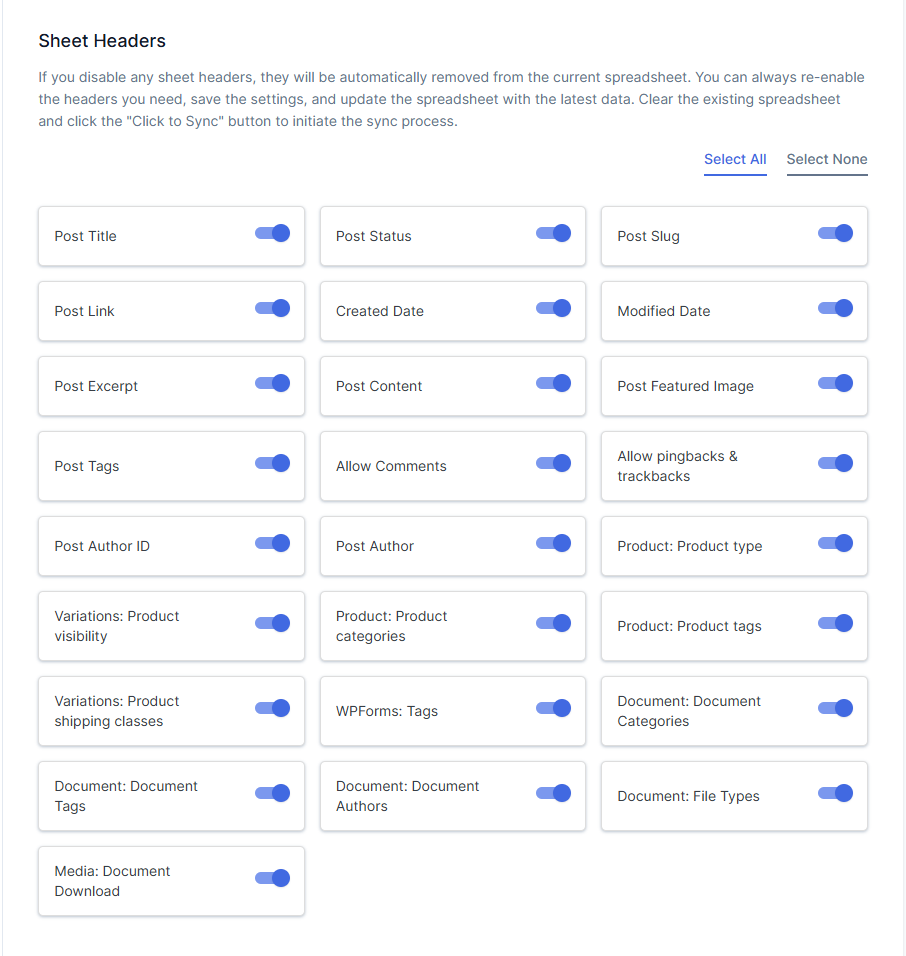
Get complete control over the columns’ settings. You can add, edit, delete, and reorder sheet columns directly from the admin area.

Easily import and export WordPress posts, pages, and custom post types with ACF Lite and Pro version custom fields (view ACF fields).

Effortlessly create and customize an unlimited number of new data sheets, streamlining your workflow with just a few quick clicks.

Different custom post types are sorted in sub-sheets within a single Google Sheet for easier data management and analysis.

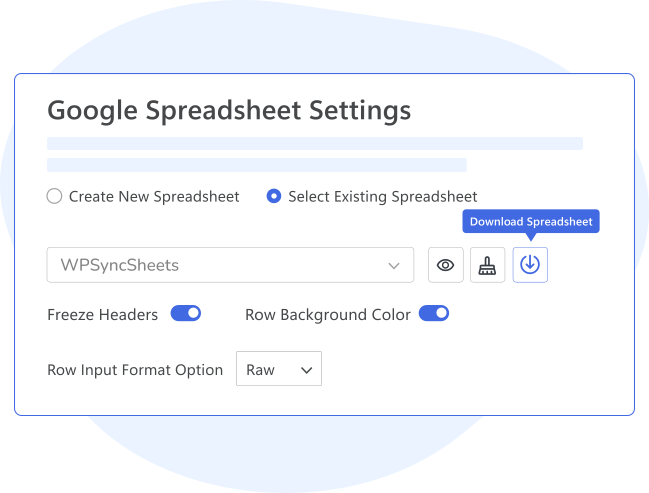
Get all options in one place. View, Clear, and Download your Google Spreadsheet with a single click from the plugin’s settings page.

Enable a custom date range filter to display posts, pages or custom post types from a specific time period in Google Spreadsheets.

WPSyncSheets For Core works straight out of the box. Its user-friendly interface requires no coding, no complex configuration, and no technical skills required.

Share and collaborate on WordPress content with your team using Google Sheets. Safely share synced sheets and update content without touching the WordPress dashboard.

Sync your content and unlock powerful reporting and analytics directly inside Google Sheets. No extra exports or tools required.
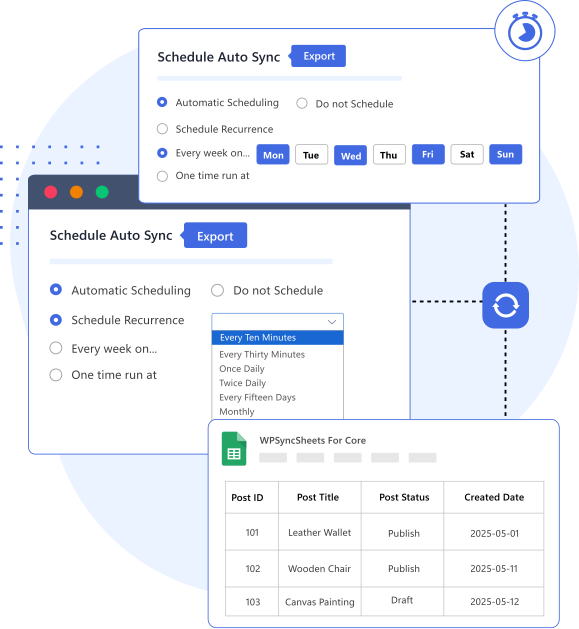
Automate WordPress data imports and exports with smart scheduled synchronization. Set your preferred time and let WPSyncSheets sync your content with Google Sheets automatically.
Beyond import and export, WPSyncSheets gives you powerful controls to customize how your Google Sheets are created, formatted, and styled. Easily manage layouts, improve readability, and keep your synced data perfectly organized.
Real-time sync, complete control, and powerful import/export capabilities. Trusted by 200,000+ WordPress users to simplify daily content.
Buy Plugin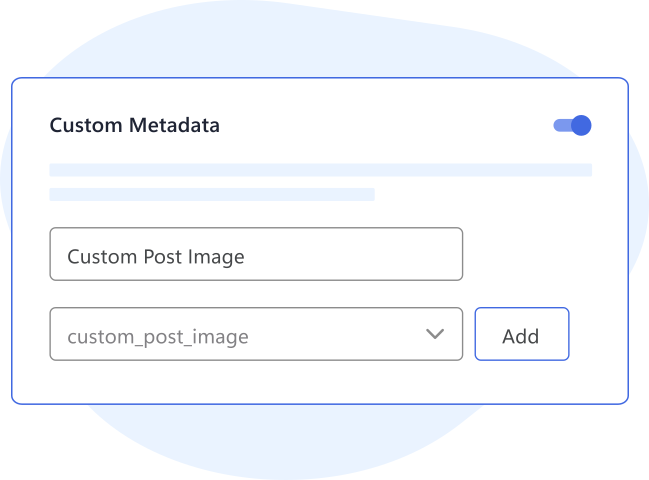
Take full control of your Google Sheets with custom headers and metadata mapping — all in a few clicks.
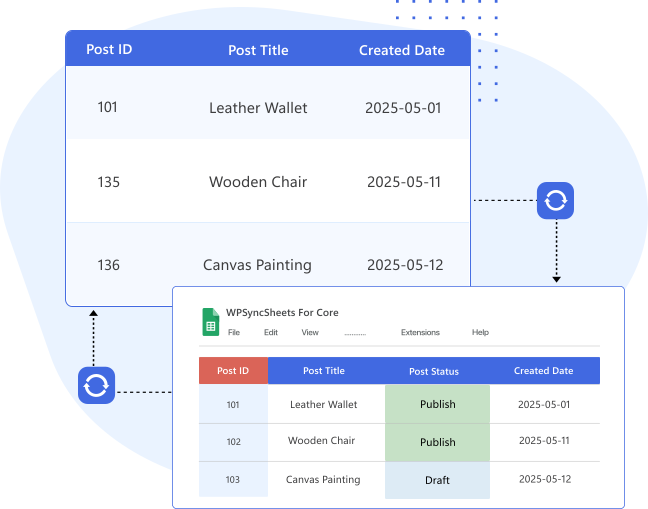
Real-time, two-way post status synchronization between WordPress and Google Sheets for effortless content management and accuracy.
 Top Rated 5/5 in 900+ reviews
Been looking for something like this now for months, and when found this plugin, it did exactly what I needed, it does exactly what it says it does, would highly recommend. Also, the support of the team who built the plugin is also very very good.

CEO, SEO Builder
WPSyncSheets For Core is one of our core plugins for our business. The quality of the plugin and support is outstanding. Their support is super fast and amazing. Plugin works perfectly! Highly Recommended!

CEO
Great plugin! Does exactly what it’s supposed to do and better. Easy to set up and configure, lots of different options. The help docs and videos are super helpful. Support is excellent; Any issue I’ve had they got back to me and fixed it right away. I highly recommend this plugin and company. Five stars.

Founder


If our plugin doesn’t work as promised, you’re backed by our 14-day refund policy to request your money back.
Read about our policy here.
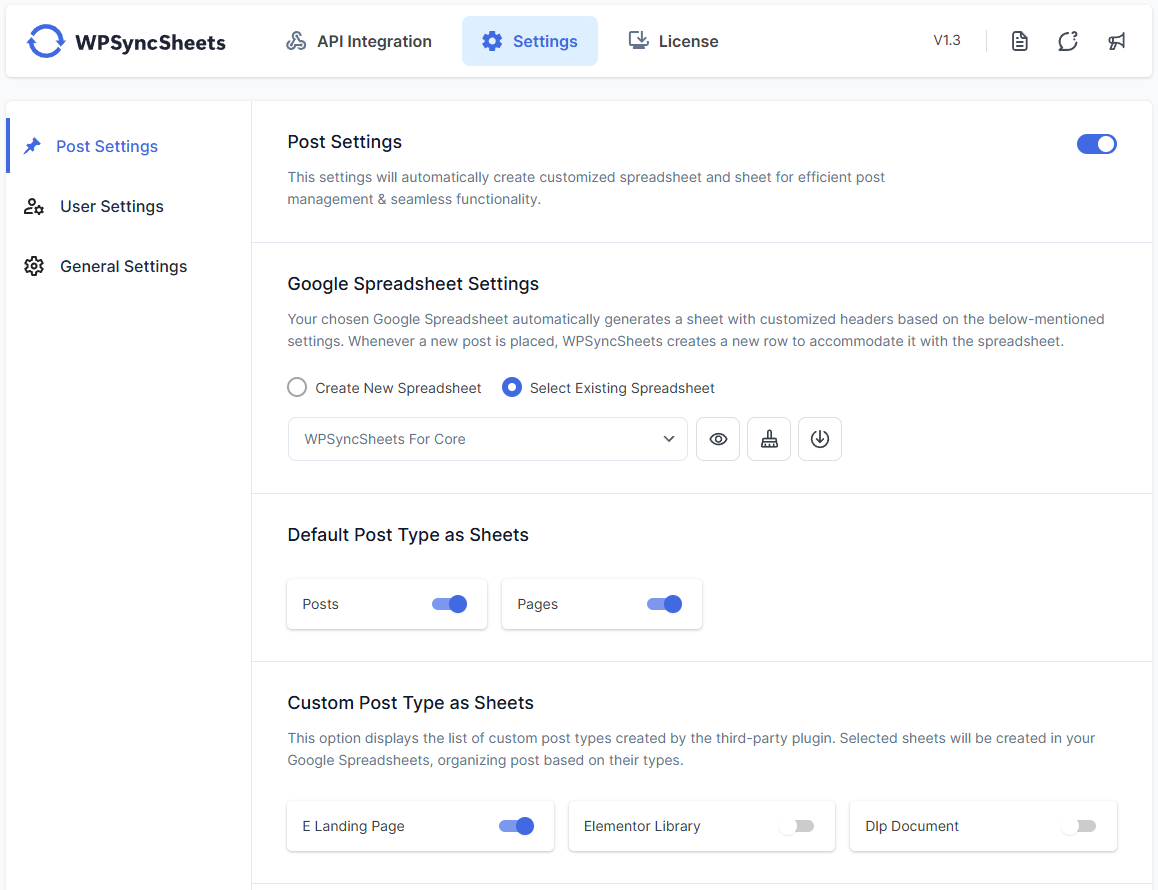
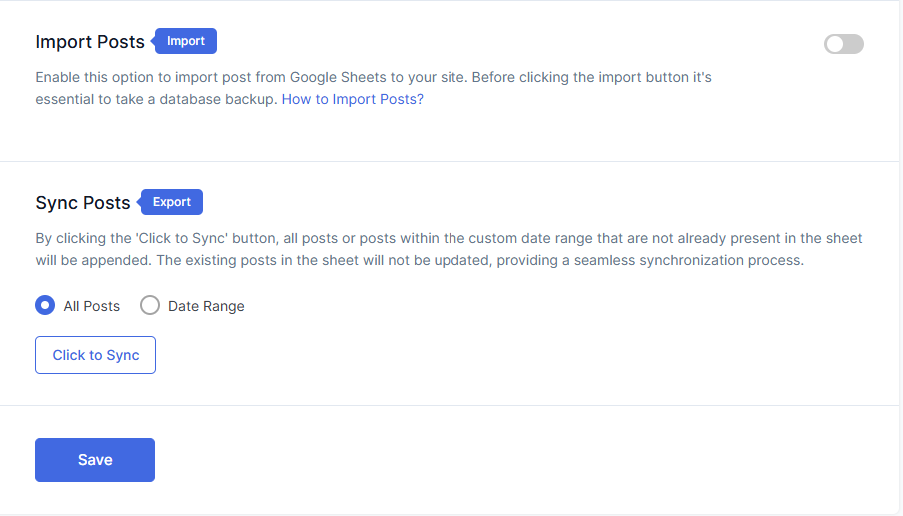
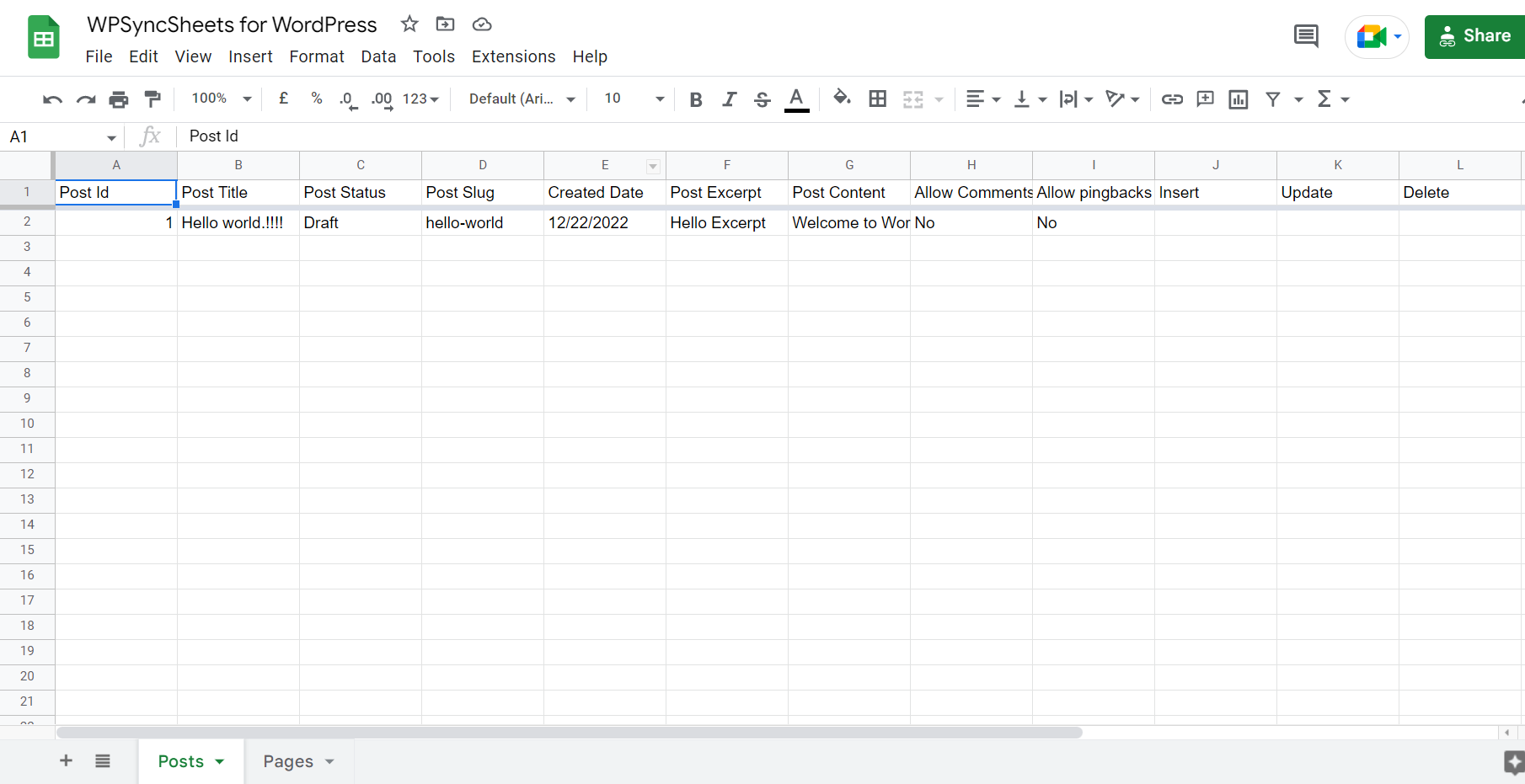
Yes, You can synchronize the existing WordPress posts by clicking the “Click to Sync” button on the General settings page.
There are following ways to resolved this error:
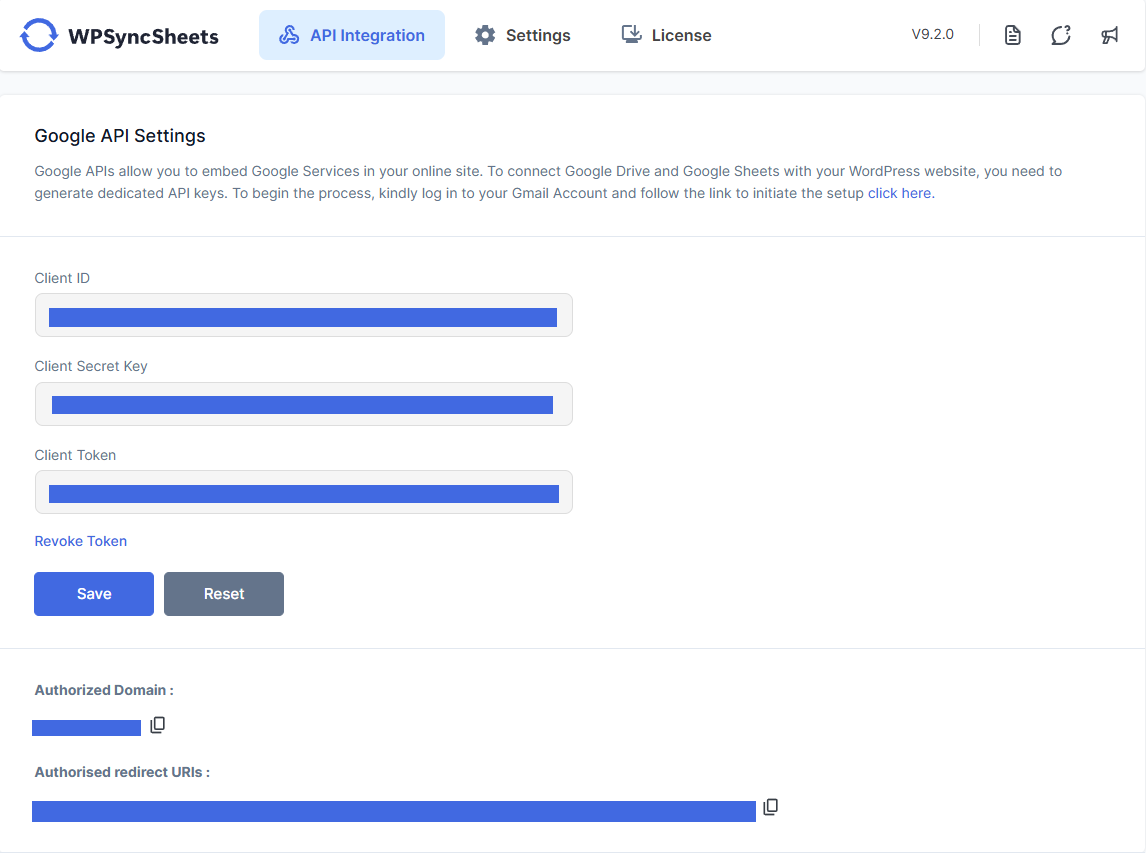
Revoke token at Google API Settings Page.
Check the Google Drive API must be Enable
Please visit link Click Here.
No, We can’t reorder/add/edit the sheet header columns manually because it will be miss match the orders data
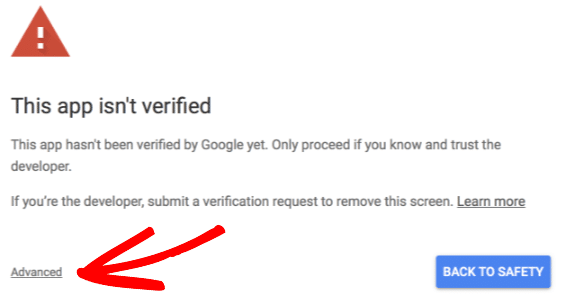
Google might display a screen that says “This app isn’t verified. This app hasn’t been verified by Google yet. Only proceed if you know and trust the developer.” There’s no need to worry, though — the message is only referring to the app that you just created in your own Google account (so you are actually the developer in this case).
To bypass this message, you’ll need click Advanced and then Proceed.
Can’t find an answer to your question? Search our knowledge base or get in touch via the contact page.
We care about your data privacy policy.